
initial setup
@tag
#tag
To install WSL on a windows machine, use Debian, and use WSL2:
https://learn.microsoft.com/en-us/windows/wsl/install
# install (ubuntu by default)
wsl --install
specify a distro to install
wsl --install -d Debian
reboot here
list all
wsl -l -v
set default wsl version for all instances
wsl --set-default-version 2
set the default wsl version
wsl --setdefault Debian
remove the ubuntu install
wsl --terminate Ubuntu
wsl --unregister Ubuntu
wsl -l -v
install hyper-v manager and create a v-switch first :
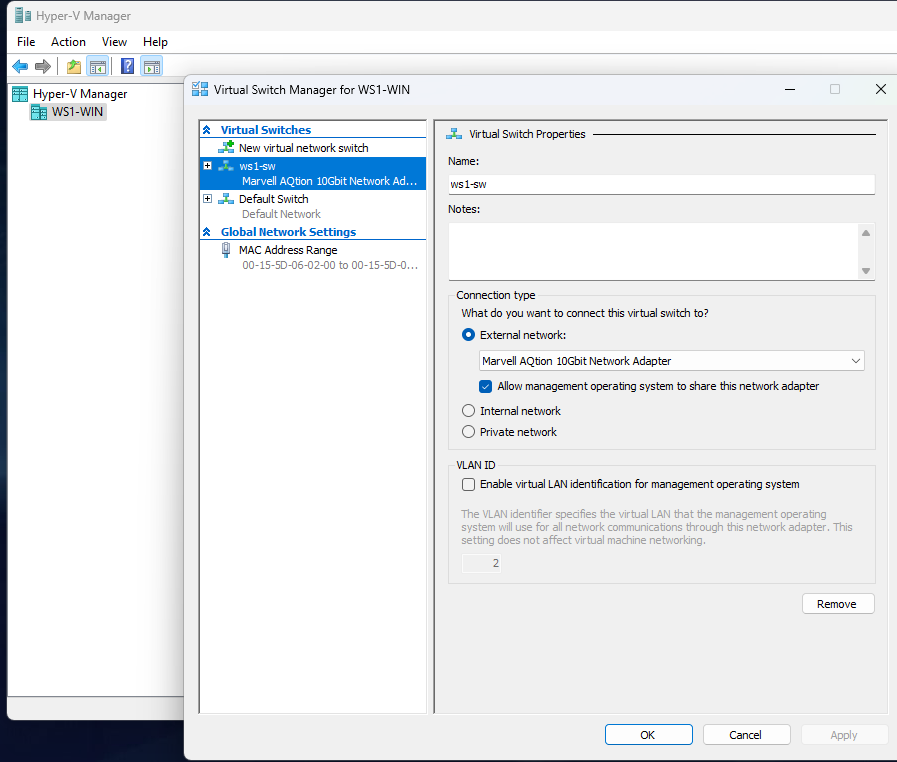
next edit the `/etc/wsl.conf` file to enable systemd and some other WSL stuff:
# Set a command to run when a new WSL instance launches.
[boot]
systemd=true
Set whether WSL supports interop process like launching Windows apps and adding path variables. Setting these to false will block the launch of Windows processes and block adding $PATH environment variables.
[interop]
appendWindowsPath=true
Automatically mount Windows drive when the distribution is launched
[automount]
Set to true will automount fixed drives (C:/ or D:/) with DrvFs under the root directory set above. Set to false means drives won't be mounted automatically, but need to be mounted manually or with fstab.
enabled = true
reboot wsl with `wsl --shutdown` and relaunch
`systemctl --user status` will return
"Failed to connect to bus: No such file or directory"
to fix this (https://medium.com/@avivarmaformal/setting-up-debian-on-wsl2-with-systemd-fb4831dd7b82)
# this should show inactive/failed
sudo service systemd-logind status
sudo apt -y update
sudo apt -y upgrade
sudo apt -y install dbus-user-session
sudo apt -y install --reinstall libpam-systemd
restart systemd-logind and check status, should be running
sudo service systemd-logind start
sudo service systemd-logind status
fixing other errors like shutdown not working
sudo apt -y install --reinstall dbus
reboot wsl here and make sure dbus is running
sudo systemctl status dbus
fixing an issue with running VSCode from the terminal
sudo apt -y install binfmt-support
sudo echo ':WSLInterop:M::MZ::/init:PF' > /usr/lib/binfmt.d/WSLInterop.conf
sudo systemctl restart systemd-binfmt
sudo systemctl restart binfmt-support
look for WSLInterop here
sudo ls -Fal /proc/sys/fs/binfmt_misc/
check for enabled here:
sudo cat /proc/sys/fs/binfmt_misc/WSLInterop
check https://github.com/microsoft/WSL/issues/9360 for issues with path append and interop